For the complete documentation index, see llms.txt. Markdown versions of documentation pages are available by appending
.mdto page URLs; this page is available as Markdown.
Client Relationship Management
Client Relationship Management allows you to perform the following operations:
- To capture additional details of Clients using the "Data Tables" option.
- Upload any necessary documents of Client like Driving License, Passport etc.
- Insert necessary "Notes" to provide additional information.
Record Additional Details Using Data Tables
In order to capture additional details, follow these steps:
- Go to Admin >> System >> Manage Data tables
- Click on Create Data Table tab. The following page will be displayed:
| Field Name (attribute) | Description | Example | Validations (if applicable) |
|---|---|---|---|
| Data Table Name | Please provide an appropriate name for the Data Table. | Client's Marital Status | |
| Application Table Name | From the drop-down menu, select 'Clients'. | ||
| Multi Row | Check this box if multiple rows are required to capture additional details of the client. | ||
| Add columns | Provide an appropriate Column Name and select the Column Type (example: String, Number, Date, etc.) from the drop-down menu. Then, click on '+' button to add the column and finally click on "Submit" button to create the data table. |
3. Once the Data Table is created, go to any client's profile to enter additional details (as shown in the following screenshots):\ \ 1. Click on the Marital Status tab (the additional detail created by data table).
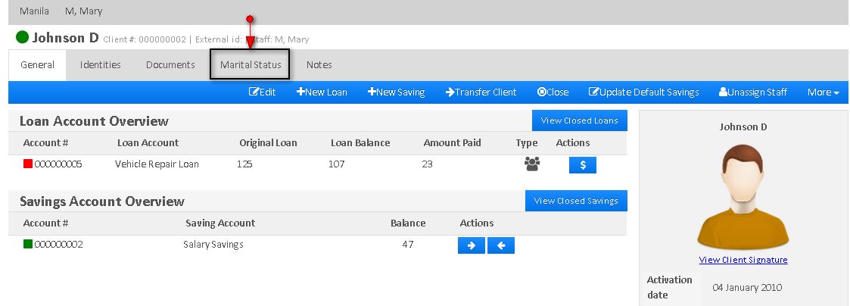
2. Click on "+Add" button.

3.Enter the relevant details and click on the 'Submit' button.
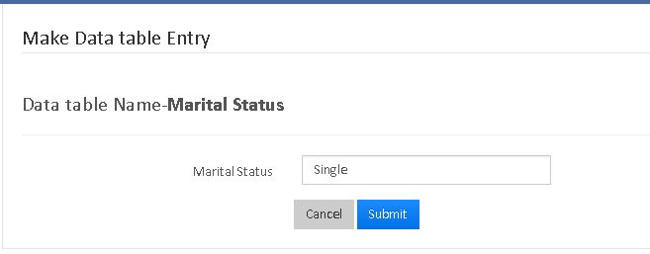
Upload Documents of a Client
- Go to the Client's profile and click on the 'Documents' tab.
- A new window will appear with a '+Upload' tab at the top-right corner. Click on it and the following window will be displayed:
| Field name (attribute) | Description | Example | Validations (if applicable) |
|---|---|---|---|
| Name | Provide the name of the document to be uploaded | Passport | |
| Description | Give some information about the document | Passport Details | |
| Browse | Click on 'Browse' button to select the file (document) from your computer. After selecting the document, click on the Submit button to upload the file. |
Record Additional Information using Notes
If any other additional information of a Client needs to be saved for future reference, Notes can be used:
- Go to the Client's profile and click on 'Notes' tab.
- Enter the additional information and click on 'Add' button.
Related articles
- Page:Manage Centers
- Page:Client Relationship Management
- Page:Manage Clients