For the complete documentation index, see llms.txt. Markdown versions of documentation pages are available by appending
.mdto page URLs; this page is available as Markdown.
Getting started with - Data Import Tool
Getting started
Starting Data Import tool, Using Git bash >> Go to:
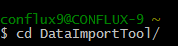
Run:

Once the server is started:

Using Data Import tool, from web browser - Go to:
http://localhost:8070/DataImportTool

Using Data Import Tool
Setting up from Front end
In order to start importing data, you should have created office & staff from front-end:

Importing Clients 
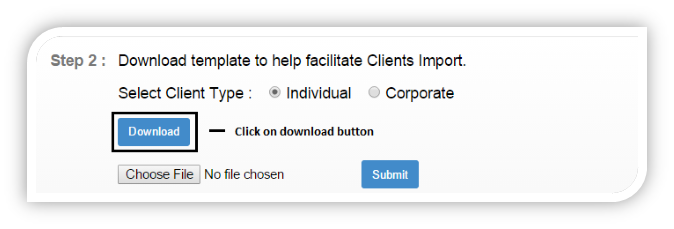
Updating details in the downloaded sheet:

Note: All fields marked with an asterisk(*) are compulsory.
Drop down values should be selected, i.e. for: Office Name, Staff Name and Active.
Date format should be: DD-MM-YYYY
Uploading the sheet: 
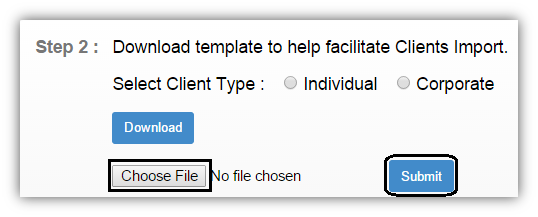
Choose file and select the file >> then click on submit button to upload.
Re-Uploading unsuccessful import sheet 
If the import was not completely successful, then Re-Upload.xls sheet will be generated automatically:

Open the sheet and check for status
In the shown example:
a) For 2nd row for client – “John”, Import was failed and the status is “activationDate : Client activation date cannot be a date before the office opening date” (Shown in red).
b) For 3rd row for client - “Anna”, Import was Successful and the status is “Imported (Shown in green)”.
After making the necessary changes, upload the same sheet again.
For this example, I am only updating for failed import i.e.:
a) For 2nd row for client – “John”, updating the “Activation date” to the Office opening date or later date.\ Import Successful
On successfully completing the import, it will show the message as:
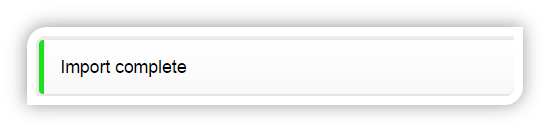
In the same way Data can be imported
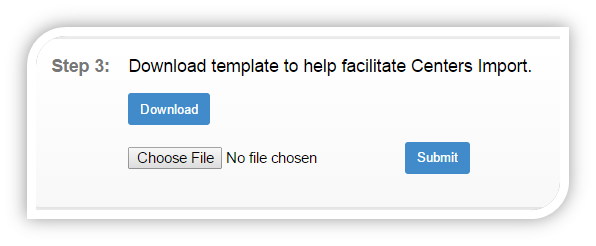
Import Centers: 
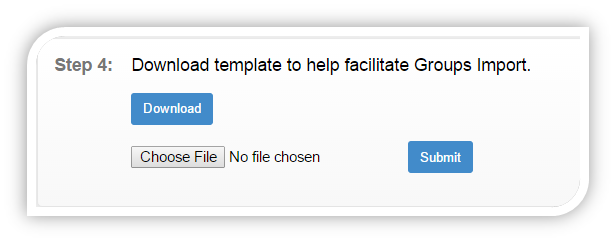
Import Groups: 
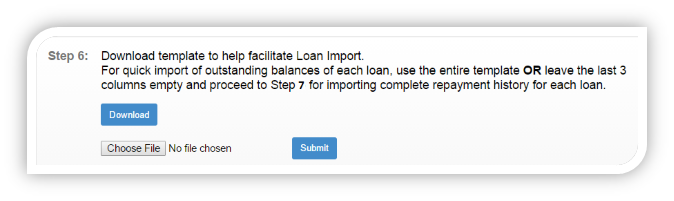
Import Loans:
To start importing Loans, you should have defined from front end:
Currency configuration, Loan products & Charges. (Administration => Organisation/ Products)
Payment Types (Administration -> System -> View Code -> Add/Edit Code Value)
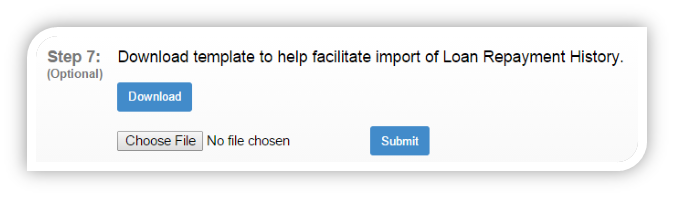
Import Loan repayments:
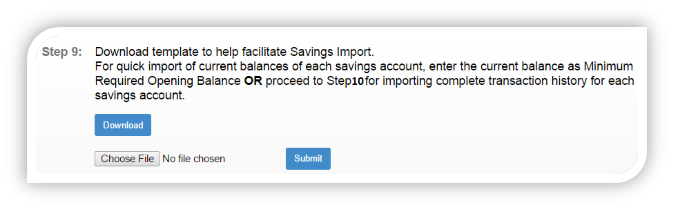
Import Savings:
To start importing Savings, you should have defined from front end:
Currency configuration, Savings products & Charges. (Administration => Organisation/ Products)
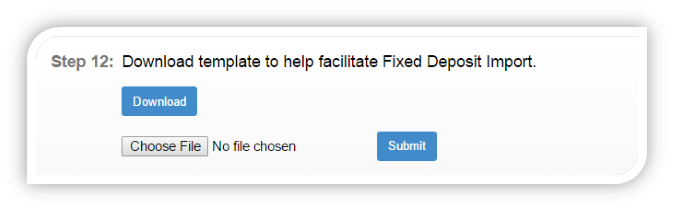
Import fixed deposit:
To start importing fixed deposit, you should have defined from front end:
Currency configuration, fixed deposit products and Charges. (Administration => Organisation/ Products)
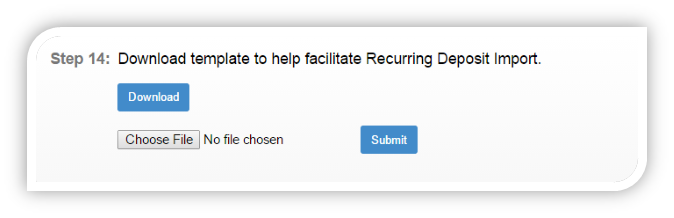
Import recurring deposit:
To start importing recurring deposit, you should have defined from front end:
Currency configuration, recurring deposit products and Charges. (Administration => Organisation/ Products)
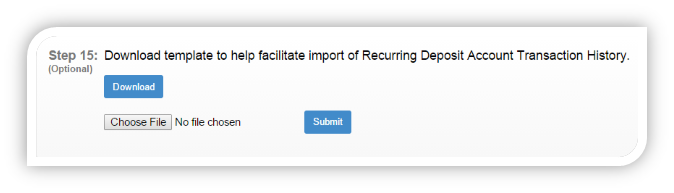
Importing RD account transaction’s:
Importing closing of savings account:
Importing/Adding – Journal entries: 
Reference Guide: https://github.com/openMF/DataImportTool
